When the alarm sounds
The viewer sounds an alarm when the connection to the station has been interrupted for 20 seconds: you can no longer see or hear the room, so check on it. A paused station counts as well, for example when someone left Nannavista on the station.
What happens, step by step
As soon as the connection drops, the viewer shows Interrupted for and how long, for example Interrupted for 0:12, dims the last picture and keeps trying to reconnect.
- After 20 seconds, the alarm sounds for 10 seconds. A red banner says Check on and the station's name, for example Check on Nursery. The iPhone also vibrates strongly every 2 seconds.
- After 1 minute, the alarm sounds again.
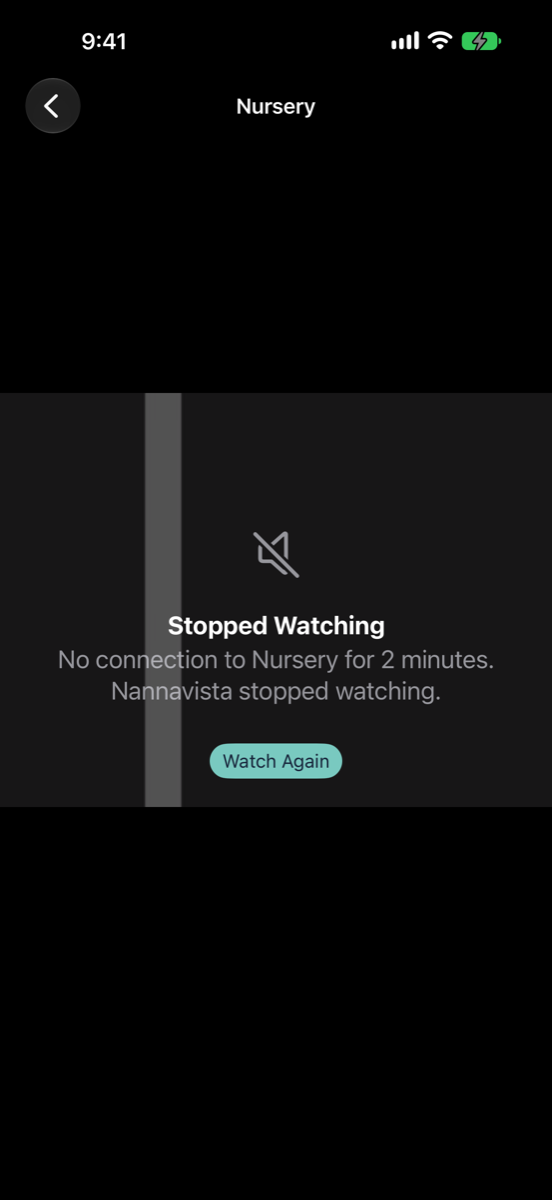
- After 2 minutes, Nannavista stops watching and sounds the last alarm. It rings until you tap Silence Alarm.
When the connection comes back before the 2 minutes are up, the alarm stops and the picture returns.
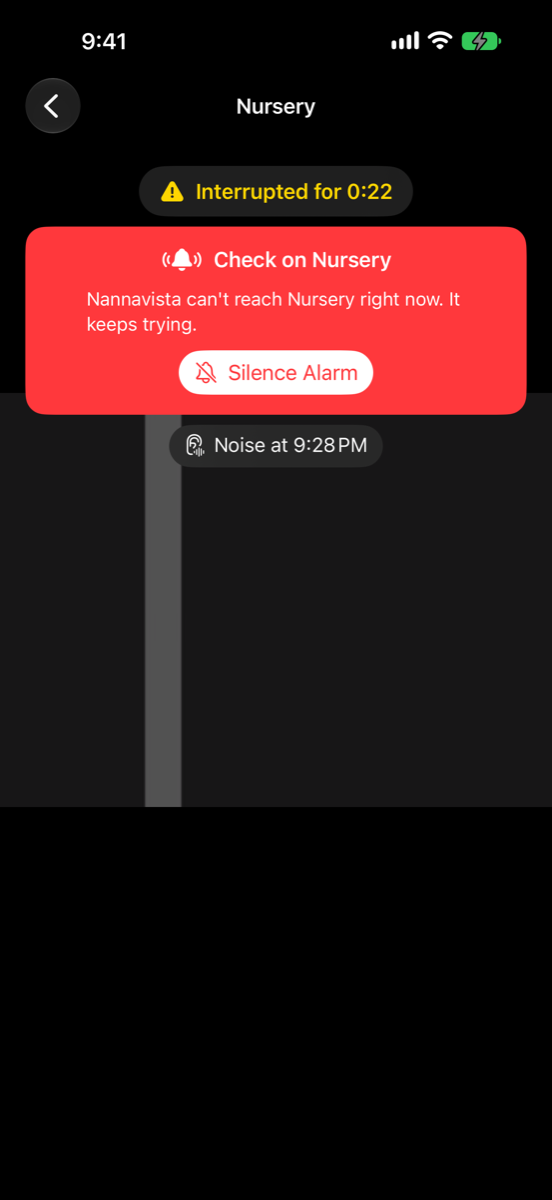
The alarm always sounds; it can be silenced but not turned off. With VoiceOver on, the viewer also announces Alarm. Check on Nursery.
Silence the alarm
Open Nannavista, for example by tapping the alarm notification, and tap Silence Alarm in the red banner.
Silencing quiets the alarm that rings now. If the connection stays interrupted, the next alarm still sounds.
After the last alarm
The last alarm ends watching, so that the viewer doesn't drain its battery all night. Once you silence it, the viewer shows Stopped Watching and how long the station was gone. Tap Watch Again to watch the station again.
When Nannavista is in the background
While Nannavista plays the station's sound in the background or with the screen locked, it rings the alarm itself. If iOS has suspended Nannavista, the alarm arrives as a notification instead: Nursery Interrupted. The last one says that Nannavista stopped watching; open Nannavista to watch again.
For these notifications to reach you, allow them and turn on Critical Alerts if your device offers them; see make sure the alarm reaches you. Don't close Nannavista in the app switcher while you watch: it can only alert you while it is open.
Find out why
Check on your child or pet first. Then look at the station:
- It shows its screen and runs: the Wi-Fi or the internet connection may have dropped. See fix connection problems.
- It shows another app or the Home Screen: someone left Nannavista, so the station paused. Open Nannavista on it again, and use Guided Access to keep it on screen.
- It is off: its battery ran out. Keep it on a charger.