Keep children away from the station
A curious child can tap the station, leave Nannavista or stop the station. Leaving Nannavista pauses the station: viewers then see Station paused, and after a while the alarm sounds. Guided Access, a feature of iOS and iPadOS, keeps the station on its screen until you end it with a passcode.
Turn on Guided Access once
- On the station, open the Settings app and go to Accessibility > Guided Access.
- Turn on Guided Access.
- Tap Passcode Settings > Set Guided Access Passcode and choose a passcode. You can also allow Face ID or Touch ID there to end Guided Access.
Start Guided Access on the station
- Open Nannavista and start the station.
- Triple-click the side button, or the Home button on devices that have one.
- Tap Start.
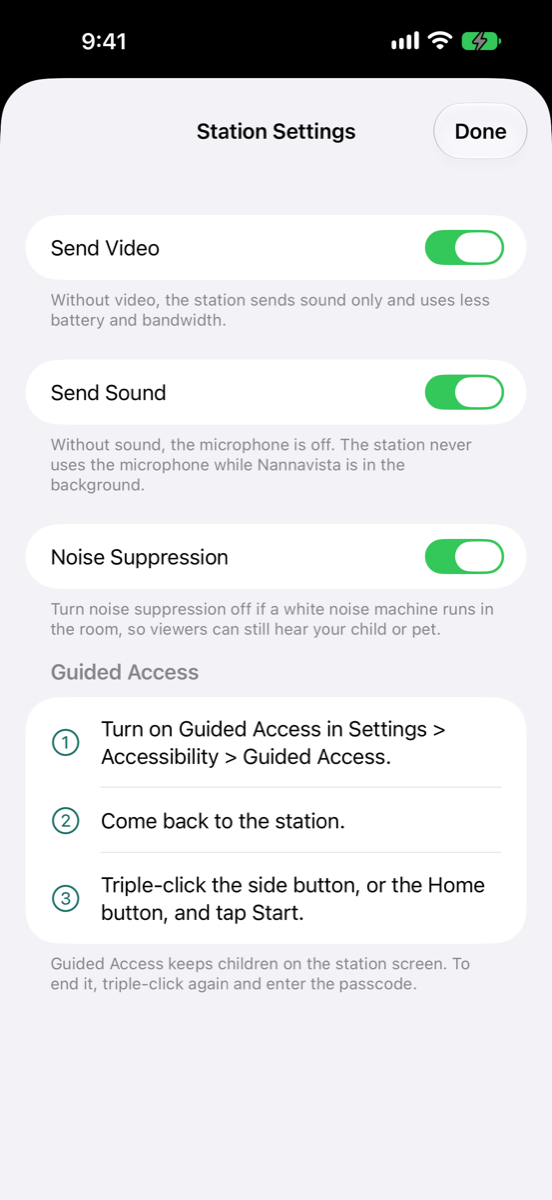
The station now stays on its screen. Nannavista's Station Settings list the same steps under Guided Access while Guided Access is off.
End Guided Access
Triple-click the side button or the Home button again, enter the passcode and tap End. Then you can stop the station.
Good to know
- With Guided Access, the station's screen still turns black after a minute without a touch, and a tap still shows the picture again.
- Guided Access can also turn off touch for the whole screen: tap Options after the triple-click and turn off Touch. The station keeps running, but a tap no longer shows the picture.