Set up your first station and viewer
In this tutorial you turn one iPhone or iPad into a station, pair a second one as its viewer and watch the station for the first time. You need both devices, on the same Wi-Fi, next to each other. It takes about five minutes.
1. Start the station
- On the device that will stay with your child or pet, open Nannavista. On the first launch, swipe through the introduction and tap Get Started.
- Under Name of This Device, enter the name of the room, for example "Nursery". Your viewers will show the station by this name.
- Tap Station. Read why Nannavista needs the local network, tap Continue and allow access when iOS asks.
- Allow Nannavista to use the camera and the microphone when iOS asks.
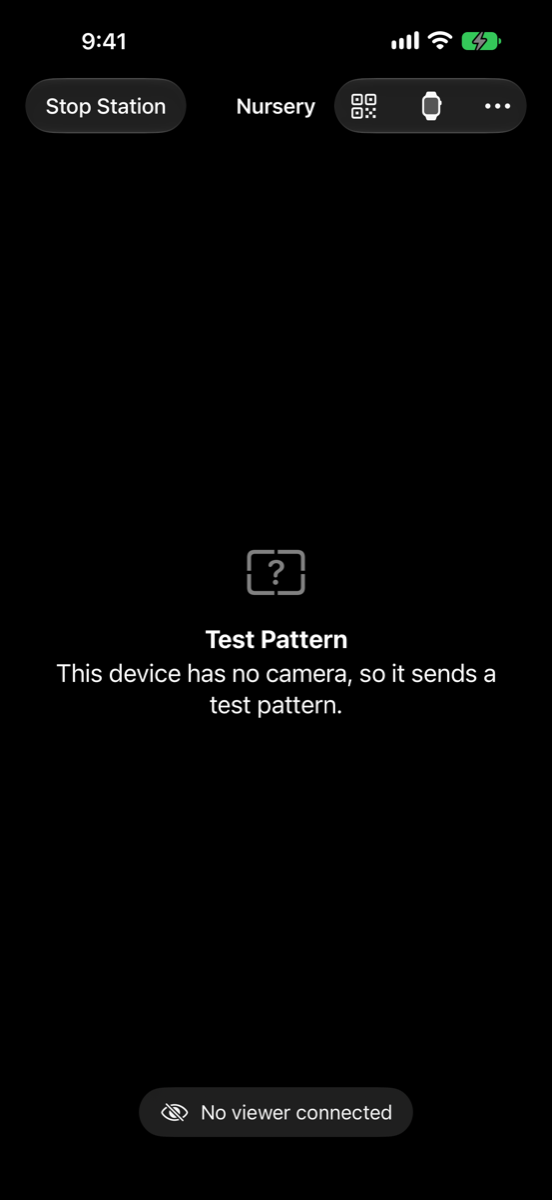
The station now shows what its camera sees. At the bottom it says No viewer connected. The first time, a tip at the top explains how to keep children on this screen; you'll find it again in keep children away from the station.
2. Show the pairing code
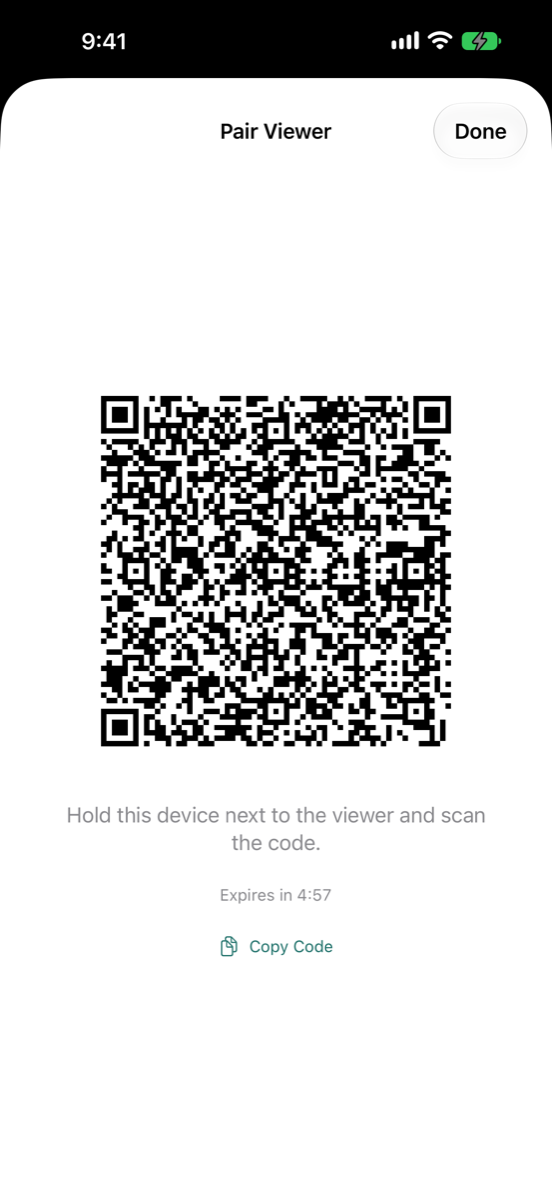
On the station, tap Pair Viewer, the code button at the top right. The station shows a pairing code and how long it stays valid: a few minutes.
3. Scan it with the viewer
- On the second device, open Nannavista. If you like, give it a name under Name of This Device; the station will show it.
- Tap Viewer, then Add Station. Allow the camera when iOS asks.
- Point the camera at the pairing code on the station.
The viewer shows Connecting to the station…, then Confirm on the Station.
4. Allow the viewer on the station
The station asks Allow "name" to watch?. Check that it is the name of your viewer and tap Allow.
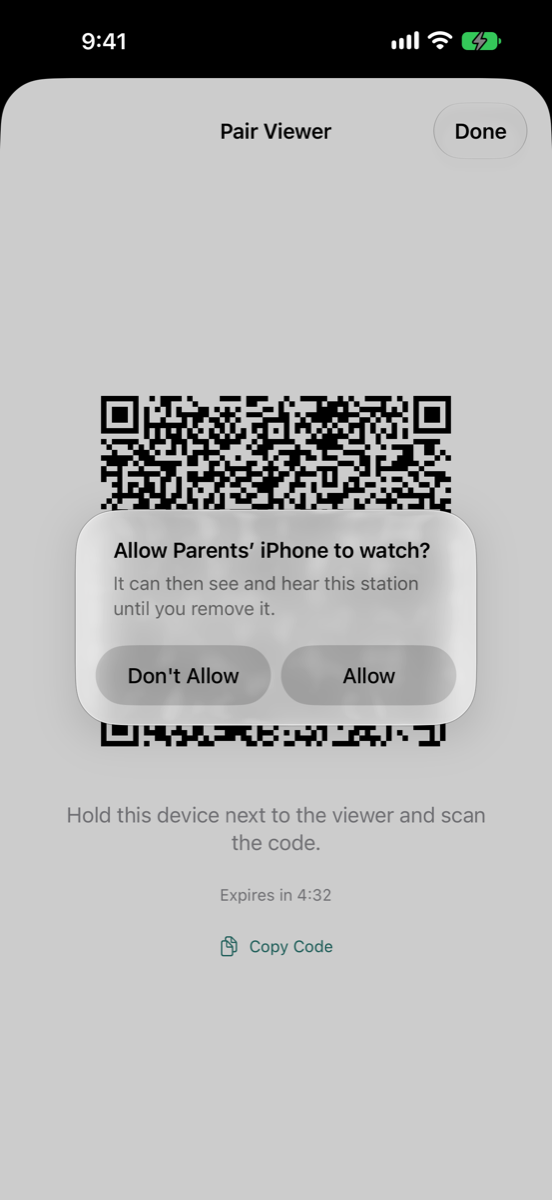
The viewer's list of stations now shows the station. You pair these two devices only once: from now on, the viewer finds the station whenever both are running.
5. Watch the station
- On the viewer, tap the station in the list.
- The first time, Nannavista explains why it needs notifications. Tap Continue, then Allow. Notifications carry the alarm while Nannavista is in the background; see make sure the alarm reaches you.
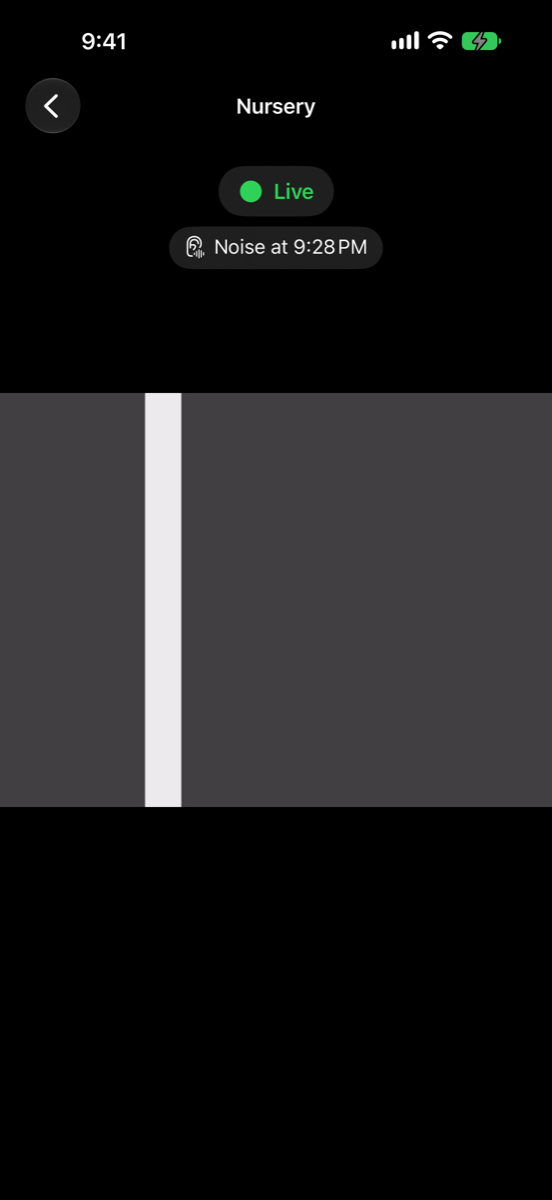
After a moment the viewer shows Live with the station's picture and plays its sound. The station's battery shows below. On the station, the bar at the bottom now names your viewer with a green eye.
6. Get ready for the night
- Connect the station to a charger and place it so the camera sees the bed or basket. Leave Nannavista open on it: when the station leaves Nannavista, viewers see Station paused and the alarm sounds after a while.
- After a minute without a touch, the station's screen turns black, at the lowest brightness, so it doesn't light up the room. Tap it to see the picture again.
- Take the viewer with you. You can lock it: you'll still hear the station, and the Lock Screen shows that you're watching the station.
What you have done
You started a station, paired a viewer with it and watched it. Next:
- When the alarm sounds: what happens when the connection is interrupted, and what to do.
- Keep children away from the station with Guided Access.
- Stop the station in the morning.